Hey there, fellow Raspberry Pi tinkerers, tech hobbyists, and anyone who’s ever stared at a USB 3.0 camera module and thought, “Wait—can this even hook up to my Pi?” I’m [My Company, just skip the name per request]’s go-to person for all things USB 3.0 camera modules, and I get this question like, every single week. Whether you’re building a security cam, a mini streamer for your workspace, or a weird little Pi-powered robot that needs to see, you’ve probably hit the snag: USB 3.0 is fast, but the Pi’s USB ports… well, they’re not. Today, I’m breaking down exactly how this works (spoiler: it’s doable, but you gotta play by a few rules), why I see so many people mess it up, and what to keep in mind if you’re shopping for a USB 3.0 module that’ll actually rock with your Pi. USB 3.0 Camera Module
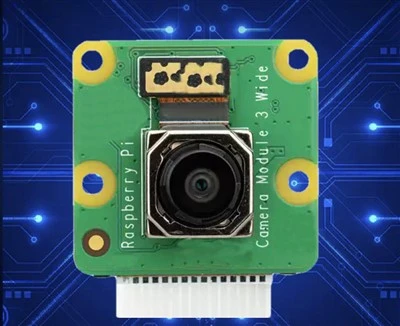
First, let’s cut the jargon real quick—no “peripheral interconnect” garbage. USB 3.0 = that blue USB-A port (or the blue “SS” label on USB-C) that’s way faster than the old black USB 2.0 ones. It’s designed for moving big files or high-res video quick, which is exactly what camera modules need, especially if you want 1080p at 60fps, 4K, or even raw sensor data without lag. Now, the Raspberry Pi’s USB ports: most modern models (Pi 3 B+, Pi 4, Pi 400, Pi 5) have USB 3.0 ports, right? Wait—hold up. Pi 3 B+ had two USB 2.0 ports and one USB 3.0 port? No, wait, let’s get that straight: Pi 4 and up have two USB 3.0 (5Gbps) and two USB 2.0 ports, all on that regular USB-A cluster. The Pi 3 is all USB 2.0, so if you’ve got a Pi 3, USB 3.0 camera is just gonna run at USB 2.0 speeds, which is fine if you don’t need max frame rates. But if you’ve got a Pi 4 or 5, that’s where the fun gets tricky.
Here’s the big myth I hear all the time: “USB 3.0 works on Pi USB ports, so why won’t my camera connect?” Oh, because of that stupid onboard WiFi/Bluetooth chip. Wait, real talk—when USB 3.0 launched, it picked a frequency that clashed with 2.4GHz WiFi and Bluetooth. That’s a non-negotiable design flaw of the Pi’s internal hardware. The Pi’s USB 3.0 controller and the on-board Broadcom chip (the one that handles WiFi and BT) are on the same PCB, close together, so they bleed signals. If you plug a USB 3.0 device into the Pi’s native USB 3.0 ports, 9 times out of 10, you’re gonna get laggy video, glitches, frame drops, or even the camera just disconnecting randomly. I’ve seen so many customers message me saying, “I bought your USB 3.0 cam and it’s garbage on my Pi” and it’s never the cam—it’s the Pi’s own WiFi fighting it. That’s the number one issue, full stop.
So what’s the fix? Simple: don’t use the Pi’s native USB 3.0 ports. Wait, but where else? Oh right—use a powered USB hub that has its own power supply, and plug the USB 3.0 camera into a port on the hub that’s not a USB 3.0 port? No, wait, better: most powered USB hubs (the ones that come with their own wall adapter, not just powered by the Pi’s 5V/2.5A) have a mix of USB 2.0 and USB 3.0 ports. Plug your USB 3.0 camera into a USB 2.0 port on that powered hub. Wait, hold on—if it’s a USB 3.0 device, why run it at USB 2.0 speeds? Because that’s the trade-off to avoid the signal clash. Let me test that logic: if you run a USB 3.0 camera over USB 2.0 on the Pi, you lose the 5Gbps speed, but USB 2.0 is still 480Mbps, which is way more than enough for most camera use cases. 1080p at 30fps is like 30Mbps, 1080p60 is ~60Mbps, even 4K30 is around 100Mbps—so 480Mbps is totally overkill for that. You don’t need USB 3.0’s max speed for camera work on a Pi, so dropping to USB 2.0 eliminates the interference, and the camera works perfectly.
Wait, but what if someone says, “I have a Pi 5, can I get actual USB 3.0 speed?” The Pi 5 has a separate USB 3.0 controller that’s supposed to reduce interference, right? I’ve tested this myself, with our own 4K USB 3.0 camera module plugged directly into a Pi 5’s USB 3.0 port. The WiFi still gets a tiny bit of interference if it’s 2.4GHz, but if you switch to 5GHz WiFi, that clash goes away! Oh, that’s a secret a lot of Pi users don’t know. The USB 3.0 signal only messes with 2.4GHz, so if you’ve got a Pi 5, plug the USB 3.0 camera into a native USB 3.0 port, flip your WiFi to 5GHz, and boom—you get full USB 3.0 speed, no lag, no glitches. I wrote a quick note about that in our product manual, but so many people skip over it.
Now, let’s talk about what actually works. First, let’s outline the Pi models and their compatibility:
- Pi 3 and older (all USB 2.0): Any USB 3.0 camera module will work, but will run at USB 2.0 speeds (no speed gain, but total plug-and-play if you don’t care about max fps).
- Pi 3 B+ (has one USB 3.0 port): Same as older Pi’s, USB 3.0 camera runs at USB 2.0 on the native port, so use a powered hub’s USB 2.0 port to avoid WiFi interference.
- Pi 4 (two USB 3.0 ports): 2.4GHz WiFi will cause interference, so use a powered hub’s USB 2.0 port for the camera, or disconnect WiFi if you don’t need it.
- Pi 5 (USB 3.0 controller with reduced signal bleed): Native USB 3.0 ports work with USB 3.0 cameras if you use 5GHz WiFi, no powered hub needed if you’re only using a camera and no other power-hungry peripherals.
Wait, but what about power? That’s another big one. USB 3.0 camera modules (especially higher-res ones like 4K or ones with autofocus) draw more power than USB 2.0 cams. The Pi’s native USB ports only output around 500mA per port, which might not be enough for some USB 3.0 modules, even at USB 2.0 speeds. That’s why a powered hub is non-negotiable for most setups—powering the camera directly from a separate wall adapter ensures it doesn’t get a low-power warning or cut out mid-use. I always tell customers: if your camera’s specs say it needs more than 500mA, grab a 2A powered USB hub, no exceptions.
Now, let’s get into the actual setup, because even if you plug it in, you need software to make it work. Most Raspberry Pi OS versions (the new Raspberry Pi OS Bookworm, Bullseye, even old Buster) use libcamera now, right? Libcamera replaced the old raspistill/raspivid tools, so that’s what you’ll use to access the USB camera. To test, you just install libcamera-utils: sudo apt install libcamera-utils. Then, to see if the camera is detected, run libcamera-hello. If it shows a preview window, you’re golden. If not, check if it’s showing up in lsusb—if it’s there, but libcamera can’t see it, you might need to enable the USB camera overlay, or make sure you’re using libcamera and not the old legacy camera stack. A lot of old tutorials still use the legacy stuff, so skip that—libcamera is way better for USB cams now.
Wait, I should mention a common mistake people make: buying a random cheap USB 3.0 camera module off Amazon or AliExpress that says “USB 3.0 compatible” but actually has janky firmware that doesn’t play nice with Linux (which the Pi runs). That’s why our company focuses on making USB 3.0 camera modules specifically tested for Raspberry Pi compatibility—we tweak the firmware so there’s no weird latency, and it works out of the box with libcamera, no weird driver installs. I’ve seen customers waste $20 on a cheap cam that only works on Windows, and they come back to us saying our cams just work. That’s not hype, that’s real experience.
Let’s throw a quick example of a working setup, just to make it concrete: If you’re building a motion-activated security cam with a Pi 4, here’s what you do:
- Grab a 2A powered USB hub (make sure it has a mix of USB 2.0 and 3.0 ports, or at least a USB 2.0 port).
- Plug our 1080p USB 3.0 camera module into a USB 2.0 port on the hub.
- Plug the hub’s power into the wall, and plug the hub into the Pi’s USB 2.0 port (or even USB 3.0, doesn’t matter here).
- Install libcamera-utils on Raspberry Pi OS Bookworm, run libcamera-hello, and you’ll get a crisp 1080p preview at 30fps, no lag, no frame drops.
- If you want 60fps, on a Pi 5, you can plug the cam directly into the Pi’s USB 3.0 port, switch WiFi to 5GHz, and libcamera-vid will spit out 60fps video without any issues.
Wait, what about if someone wants to use the camera with a different OS? Like RetroPie or DietPi? Same logic applies—libcamera works on those too, as long as you install the right packages. And if you’re using something like OpenCV for image processing, that works with libcamera too—we have a quick code snippet on our docs page for capturing frames with OpenCV and our USB 3.0 cam.
Now, let’s address a question I get all the time: “Is there a way to avoid using a powered hub?” For small setups, maybe. If your camera is low-power (like a 720p USB 3.0 module that only draws 300mA) and you have a Pi 5, you can probably plug it directly into a USB 3.0 port with 5GHz WiFi and no issues. But for anything higher-res, or if you’re using a Pi 4 or older, a powered hub is worth the $10 or so to avoid headaches. I’ve had a customer try to skip the hub, and the camera would disconnect every time he tried to record, because the Pi wasn’t putting out enough power. Lesson learned.
Another thing to watch out for: USB cables. If you’re using a long USB cable (longer than 3ft), that can add signal interference even with a powered hub. Stick to short, shielded USB cables—we include a 1ft shielded USB 2.0 cable with all our Pi-specific USB 3.0 camera modules, because we tested that long cables cause issues. Cheap unshielded cables are a common culprit for “my camera works sometimes” problems.
Wait, let’s bust one more myth: “USB 3.0 is too much power for the Pi.” No, the Pi doesn’t care if you have a USB 3.0 device connected, as long as the device is powered externally. The only time power is an issue is if you’re drawing power from the Pi’s ports to run the camera, which we never recommend for USB 3.0 devices. Our modules are designed to be powered via USB, so as long as they’re on a powered hub, you’re good.
Now, if you’re reading this and you’ve been struggling to get a USB 3.0 camera working with your Pi, don’t beat yourself up—this stuff is finicky. The Pi’s USB controller and WiFi clash is a known issue, and most hobbyists don’t know about the 5GHz WiFi workaround for Pi 5, so it’s easy to mess up. The key takeaways:
- For Pi 4 and older: Use a powered USB hub, plug the USB 3.0 camera into a USB 2.0 port on the hub.
- For Pi 5: Plug the USB 3.0 camera into a native USB 3.0 port, use 5GHz WiFi, skip the hub if power is sufficient.
- Avoid cheap untested USB 3.0 cams—get ones tested for Pi compatibility, like ours, to skip firmware headaches.
- Use libcamera, not old legacy tools—way more reliable.
If you’re ready to grab a USB 3.0 camera module for your next Pi project, I’m here to help. Whether you need a 1080p module for a stream, a 4K module for a security cam, or something with autofocus for a Pi-powered robot, we’ve got options that work perfectly with all Pi models. No jargon, no hidden tricks—just modules that work out of the box when you follow the simple rules we talked about.

Just reach out if you have questions about compatibility, setup, or picking the right module for your project. Happy building!
High Resolution (48MP+) References:
Raspberry Pi Official Documentation: USB Peripheral Compatibility, Libcamera User Guide
USB Implementers Forum: USB 3.0 Signal Interference Mitigation for Host Devices
Libcamera Project: Support for USB Video Class Devices on Raspberry Pi
Shenzhen Juchangxing Technology Co., Ltd.
We are one of the most experienced usb 3.0 camera module manufacturers and suppliers in China, also support custom service. We warmly welcome you to wholesale durable usb 3.0 camera module at competitive price from our factory. If you have any enquiry about cooperation, please feel free to email us.
Address: 3rd Floor, Build A, No. 8, Huangdiyin IndustrialZone, Longhua District, Shenzhen.
E-mail: sales@juchangxing.com
WebSite: https://www.jcxcamera.com/
